Authorpreneurship, Part 4

When we ended Part 3, we were explaining how to spend 15 minutes a day at marketing. Here are some of the particulars.

Promoting

Using Your Website

When setting up your website, be sure to acquire your author name or brand as your URL. When choosing an Internet Service Provider (ISP) to host your site, avoid providers that require you to have advertisements—no one wants to see clutter when they visit a website.

If you’re not able to able to do the work to build a website yourself, hire a designer to do it for you. If you can’t afford one, offer to do some work in trade, such as writing for them. Need ideas for an attractive website? Visit Top 29 Author Websites for a look at some of the best.

Keep in mind when you set up your site that it needs to be scalable—you’ll be writing more books, so there needs to be a way to add more pages (one for every book or series). Be sure to include the following:

  • Book pages with buy links
  • Author information
  • News
  • Reviews
  • Contact information (Facebook, Twitter, Instagram, Google+, etc.)
  • Newsletter signup

Since you’ll want to own the #1 spot on Google’s rankings for your brand and book, you need to control the messaging at all times.

  • On the book’s webpage, embed one-click-to-purchase / pre-order links for all your retailers for each book
  • Sign up as an affiliate with the retailers and add the links to increase revenue
  • Link your website on your bio across all the social media sites
  • Any book marketing content you create (blog posts, for example) should include a link to your site
  • When sending links to reviewers and reporters, use your URL instead of a retailer’s product page link

Creating an Author Facebook Page

Unlike your personal Facebook page, an author page is where you want to post information about you in your life as an author and about your books.

  • Create a page at Facebook Create A Page
  • Choose Artist, Band or Public Figure
  • Select “Author” from the Choose a Category pop-down menu and type in your author name
  • Upload a cover image that includes your book(s)
  • Upload your author photo as your icon
  • Invite your friends to “Like” the page (you need to start somewhere)
  • Over time, the “Likes” and “Followers” will organically increase as you participate in promotional opportunities and as more people discover and read your books

Creating a Twitter Page

Although there are some who swear by Twitter to sell books, others will tell you it doesn’t work for them. Even if you never tweet anything, others will be tweeting about you or your books, so you at least need an account. If you plan tweet on a regular basis, you can automate your tweets with third-party software like Hootsuite.

  • Create an account at Twitter
  • Complete your profile
  • Upload a cover image that spotlights your book (it can even be the same as the one you use for Facebook, although the size requirement is slightly different)
  • Upload your author photo
  • Use that short Twitter phrase you created earlier to describe yourself (don’t use a link to a book—this is about you and your brand)

Creating a Pinterest Board

Pinterest has long been a favorite for saving recipes and images of favorite people and stuff, but it’s also a great marketing tool for your brand and your books.

  • Create an account at Pinterest
  • Create a board and name it your author name
  • Click “Add a Pin”
  • Upload your book cover
  • Add the short description of your book (you should find it in your Synopsis folder) and list where it can be purchased
  • Pin it!
  • Repeat for all your books

Using Other Sites

There are a number of sites that can help promote you at little or no cost. Be sure to take advantage of them!

  • Amazon Central Author Page
    • Add your bio
    • Claim your books!
    • Add your upcoming events like book signings and book conventions
    • Add the links to your blog and Twitter account
  • AuthorsDB
  • Authorgraph (your readers can get your digital autograph for their e-books!)
  • BookBub (become a partner and set up your author page)
  • Independent Author Network (if you can’t afford a website of your own, this is the next best)
  • The Romance Reviews (okay, so this for romance authors, but there are similar sites for all genres)
  • The Romance Studio

And dozens more!

Creating a Book’s (or Series’) Facebook Page

Why does your book need its own Facebook page? You don’t have to get “Likes” and post from it, although you can. The real reason you want your book to have its own page is so that you can run Facebook ads from it instead of from your  Facebook author page.

  • Create the page at Facebook Create A Page
  • Choose Entertainment > Book or Book Series
  • Upload a cover that features the book
  • Upload the audiobook cover of your book or create an icon from your book cover and use that
  • Complete the details in the “About” section (there are fields for the ISBN, book blurb, etc.)

Creating Ads on Facebook

When you promote from the book’s Facebook page, it looks like the book is selling itself. That way, you’re not the one saying, “Buy my book” all the time.

  • Link your ad to a sales site—you’re not looking for “Likes” or followers here—you’re looking to get “Clicks” to the sales site so you can sell books
  • Use your 9-15-word description as the hook
  • Target a specific audience—use the granularity that Facebook provides, such as the appropriate locale, age range, sex, and “likes” information to drill down to the best, most likely target for your book
  • Some use the default image that appears from the sales site while other upload a custom image. Be sure to follow Facebook’s guidelines for images with respect to the amount of text on them. Book covers are now exempt from many of the restrictions Facebook puts on other ads, although if your cover shows too much skin, the autobots may reject it. Simply file an appeal so a human can take a look, and remind them that your book is targeted to an audience over 18 (if applicable) when you file your appeal
  • Set the budget per day and schedule your ad to run for at least a week
  • Revisit your targeting and budget if your ad doesn’t seem to be getting you “Clicks”
  • Need more help? Mark Dawson is the master at Facebook ads (he spends thousands on ads because he’s made them work). You can find out more at Self Publishing Formula.

That’s it for now. In Part 5, we’ll continue to list promotional opportunities, including building your newsletter list and using your newsletter, blog, social media and email promoters to reach potential readers. Keep on writing (and doing that 15 minutes a day of marketing)!

Authorpreneurship, Part 3

One of the most difficult aspects of being an author is the need to market and promote your books. Most would prefer to simply write the next book and hope their other books will be discovered on their own. It could happen. But to ensure your book is discovered, here are some steps you can take.

Asking for Book Reviews

The more reviews there are for your book, the more your book will gain visibility on a retailer’s site. How do you get reviews, you wonder? Ask!

At the end of your book, add the following paragraph (or something like it):

Thank you for taking the time to read Book Title. If you enjoyed it, please consider telling your friends or posting a short review. Word of mouth is an author’s best friend. Thank you. Author Name.

To increase your book’s reviews on release day

  • Arrange for a review with an e-magazine (InD’Tale Magazine reviews independently published books, for example) or a respected publication or service
  • Before you upload your e-books on retail sites, set up your paperback on CreateSpace
  • Send out advanced review copies (ARCs) to your beta readers (these can be e-books or paperbacks you’ve ordered as author copies from CreateSpace)
  • Request that reviewers post their reviews on CreateSpace
  • Once you have ten to twenty or more reviews, then publish the e-book on Amazon. All the reviews from CreateSpace will port over to your book’s page on Amazon when the e-book is linked with your paperback version.

Branding

Using Startup Techniques

Before you can develop your brand, it helps to know a bit more about to whom you’re trying to appeal.

Know Your Audience

When you wrote your book, let’s hope you had a specific reader in mind. That reader and others like him or her are your audience.

  • Learn which social media they use. Younger readers are using Instagram versus Facebook, for instance
  • Learn where they spend their time on the web. Do they read blogs? If so, which ones?
  • Learn who is influencing your target readership and then you’ll know where to target the right audience in the right place
  • Contribute valuable content on the platforms to which your audience already pays attention
  • Attract an audience to your platform.

Application

Your author name is your brand.

  • Develop a “look and feel” that fits you and your books
    • Work with a designer if you don’t know where to start
  • Apply the brand to everything your produce
    • Business cards
    • Website
    • Blog site
    • Facebook author page
    • Twitter page
  • Create a Twitter phrase that best describes you in 15 words or less
  • Look professional!

Marketing

For most authors, the least enjoyable or likeable part of authorpreneurship is the marketing. We just want to write!

Making a Plan

In this day and age, marketing fall on an author’s shoulders. Even traditional publishers are requiring authors to take on the marketing responsibilities (and the associated cost). If you are traditionally published and receive an advance, be sure to read your contract as it may stipulate your advance be used for advertising your book.

Start your marketing before your book is even published. Remember the audience for which you wrote your book? That’s who you’ll be targeting.

  • Decide how much you can afford to spend. If you’re not currently bringing in a regular royalty from existing books, start with $100 or more.
  • Decide where you want to spend your marketing dollars and make a plan that will help your book get discovered right from the beginning. We’ll cover some options in Part 5, including ads, blog tours, email blasts and newsletters.
  • You’ll find you’ll need to go through a bit of trial and error as you run ads—what works for some doesn’t work for others.
  • A 90-day cycle works for many authors.
    • Running a series of “stacked” ads (ads placed on a variety of sites over a period of several days) ups visibility and generates sales that eventually decline after about 90 days.
    • Repeat the above.
  • When you have more than one book to market, you’ll find running a series of stacked ads on a regular basis keeps your sales numbers up to help even out the peaks and valleys.

Making Marketing an Everyday  Task

Commit to spending 15 minutes a day on marketing. In those fifteen minutes, you can do one or more of the following:

  • Update your website
  • Place ads (Facebook, book promotion sites, e-mags, e-mail book blasters)
  • Send a tweet
  • Set up a newsletter campaign
  • Write a newsletter article
  • Manage newsletter subscriptions
  • Work with a blogger to feature your book (remember that media kit you created?)
  • Set up a book’s Facebook page (more about this in Part 4)
  • Post from your Facebook author page
  • Update your Pinterest board (more about this in Part 4)

That’s it for now. Check back for Part 4, where we’ll cover promotion using a variety of options. Happy writing!


Authorpreneurship, Part 2

As an author, you may write using a computer, a tablet, a pen or even a pencil—part of your manuscript may have originated on a cocktail napkin—but eventually your manuscript and all the supporting files necessary to publish it are all digital. Those number tracking files you created in Part 1? They’re all digital as well. These digital assets need a dedicated home on a computer where they’re easy to find and access.

Organizing Business Files

Whether you have a computer all to yourself or share one with others, you can ensure your files are organized and easily accessible by creating the following series of folders.

In your Documents folder, create a folder named BookStuff (or a name that will unique to you and your author business). Inside that folder, create the following folders:

  • Audio
  • Author
  • Book Title (your first novel)
  • Book Title 2 (your second novel)
  • Book Title x (your last novel)
  • Expenses
  • Royalties
  • Promotion
  • Website

Audio

If you haven’t yet considered putting your books into audio, you’ll want to eventually. This folder is where you’ll keep audio samples, auditions, checklists, and contracts for audiobook production.

Author

You know those head shots you had taken at the last book convention you attended? Or the selfies you took so you would have a photo to use on book retailer sites? This is where they get stored along with your author bio in all its various lengths.

Book Title

This folder ends up as Grand Central Station for all the digital files used in the creation and distribution of your book. More about this and all your other “Book” folders in a few minutes.

Expenses

Remember that expense report you created in Part 1? This is where it resides along with any digital versions of expenses you might have to retrieve in the future (make a folder just for those inside this one to help keep things tidy).

Royalties

Remember the royalties spreadsheet you created in Part 1? This is where it resides. This is also the folder in which you’ll want to create individual folders for each retailer so you’ll have a place to keep their monthly or quarterly reports. The structure looks something like this (yours will vary according to  which retailers carry your books):

  • Amazon
    • 2015
    • 2106
  • Audible (or whatever company distributes your audiobook)
    • 2015
    • 2016
  • B&N
    • 2015
    • 2016
  • CreateSpace
    • 2015
    • 2016
  • Draft2Digital
    • 2015
    • 2016
  • Google Play
    • 2015
    • 2016
  • iBooks
    • 2015
    • 2106
  • Kobo
    • 2015
    • 2016
  • Smashwords
    • 2015
    • 2016

Promotion

This is the folder in which you want to keep the files having to do with your brand (your individual books each get their own promotion folder). Store art files and any supporting files used to make bookmarks, swag, advertisements, book signing displays, vertical displays, signage, banners, website information (but not the actual web files),  etc. As you accumulate these, you can figure out the best folder names to use to help keep everything easy to find. If you find you’re ordering products from the same retailers, you’ll want them to have their own folders. Keeping past order information makes it easier to reorder and helps with price comparisons for future ordering.

Website

Here’s where you’ll keep all the files in support of your website. The structure will be something like this:

stylesheet.css
public html/
images/
scripts/

Even if you’re not the webmaster of your own site, you should have a copy of all the files necessary to rebuild your site should something catastrophic happen to your webmaster’s files. Better safe than sorry!

Organizing Book Files

Every book you write and publish results in dozens of supporting files. Besides your manuscript, you end up with cover files, various e-books formats, a character bible, images you might have used for inspiration, and your synopsis. Here’s how to organize them for easy retrieval.

Remember that “Book Title” folder you created earlier? The one for your very first book? Inside that folder, create the following folders:

  • ACX (or whatever company you use to produce the audio version of your book)
  • Bookfiles
  • Characters
  • Cover
  • A folder for every retailer (Amazon, iBooks, Nook, Kobo, etc.)
  • Media Kit
  • Promotion
  • Research
  • Reviews
  • Synopsis

Here’s how to use these folders.

ACX

This is where you store the audio files for each chapter of your book once production is complete.  Also include the retail sample and any other supporting files, such as the audition script and final book PDF you had your narrator use.

Bookfiles

This is where you want to keep the manuscript as well as any source files you use to create the book. These can include files in Word, Scrivener, InDesign or whatever you used to author your book.

Characters

Your book’s characters need a home, and this is it. Store the images you used as inspiration as well as your character bible here.

Cover

You’ll need a variety of sizes and formats of your book cover for retailers and advertisers. The actual sizes may vary by a few pixels depending on the trim size of your book.

  • Full size with front, spine and back in press quality PDF for the paperback as well as the dust jacket (if you have a hard cover version of your book)
  • Front only, full size at 300 dpi
  • Back only, full size at 300 dpi
  • Front only, 600 x 900 dpi
  • Front only, 480 x 600 dpi
  • Front only, 250 x 400 dpi
  • Front only, 200 x 300 dpi
  • Front only, 120 x 180 dpi

Retailer Folders

No matter how you create and distribute the e-book versions of your book, you’ll want to keep the latest version of whatever is published. Since the backmatter should be unique to each retailer, you’ll have different ePubs for Kobo, iBooks and Nook, for example. Use your retailer folders to keep that final file as well as any support files.

Media Kit

When you arrange for promotion of your book, you’ll soon discover you’re having to put together a bunch of files to send to bloggers and other media outlets. Here’s what you want to include in this ‘one-stop media shop’ folder.

  • Author photo
  • Author bio
  • Author links (a document that includes the URLs for your website, blog, Twitter, Facebook author page, Amazon author page, Goodreads author page, Google + page, LinkedIn page, and any other online site featuring you)
  • Book’s buy links for each retailer
  • Blurb from the back cover of the book
  • Cover image
  • Excerpts (include excerpts in a variety of lengths, including 150, 300 and 500 words)
  • ISBNs for print and e-book formats

When you need to send the media kit to a blogger or media company, simply zip the folder, give it a logical name, and email it as an attachment.

Promotion

In the course of promoting your book, you’ll create a variety of files including advertisements. Keep book-specific promotional files here.

Research

Even if your book is contemporary, chances are you had to do some research while writing it. In the process, you end up with images and articles to support what you’ve written. Store them here.

Reviews

Editorial reviews carry more weight on retail sites than do customer reviews. When your book is reviewed by a respected source, copy the entire review and keep it here. Excerpts from the review can then be posted on those sites as well as on your book’s website page.

Synopsis

Your book can be summed up in a variety of ways. Do it! You’ll need various word-count descriptions depending on where you promote your book. Here are some of the versions you may need:

  • Nine-to-fifteen-word description (hook)
  • Twenty-five word description (sometimes referred to as the elevator pitch)
  • 400-word description (e-mail promoters like The Fussy Librarian require this length)
  • 900-word description
  • Back cover blurb
  • Synopsis

That’s it for Part 2. Stay tuned for Part 3, where we’ll discuss some tactics to gain reviews as well as cover branding and marketing.


Authorpreneurship, Part 1

Now that we’ve managed to write and publish fourteen books, it’s time to pass along some of what we’ve learned in the process. The topic of “authorpreneurship”, which covers the business side of being an author, proved popular at the book conventions where we taught classes this year.

Definition

Authorpreneur is a derivation of “entrepreneur”, a term used to describe a businessperson who is usually the founder of a start-up company. Tech-savvy, agile and resilient, authorpreneurs share the traits of an entrepreneur. They grasp the nuances of social media and use it to help with brand-building and cross promotion. Those who love dealing in data (number-crunching) also employ analytics to help them them determine just how they’re doing with their online presence. They understand that these days, being an author requires one to also be a businessperson.

Perhaps the most important aspect of authorpreneurship is that it exposes the fallacy of the ultra-passive, “If you write it, they will read it” approach to reader acquisition. Most authors are well aware that besides writing the very best book they can, they need to work harder on making that book discoverable. How do they do it? Let’s start at the beginning.

Setting Up the Business

There are a number of steps anyone needs to perform when starting their own business, and those steps vary by state. Speak with a professional, preferably an accountant who is also a lawyer specializing in businesses. They will help determine if the business should be classified as a sole proprietorship (applicable to most, especially those just getting started), a limited-liability corporation (LLC), or S-Corp. Then apply for an Employer Identification Number (EIN) from the IRS. It’s free and acts as a sort of substitute for your social security number.

Next, set up an imprint or legal entity to provide a more professional presentation. Create a publisher name and register it as a “DBA” (doing business as) with the secretary of state. NOTE: This will vary by state and should be covered when meeting with the accountant/lawyer.

Be sure to apply for any business licenses if they’re necessary for where you live, and if you plan to sell books at local events, be sure to collect sales tax (if applicable) and file as per your state’s requirements.

Reserve the domain name (URL) associated with the imprint name, or your author name if it’s available.

Set up a dedicated business checking account using your DBA or LLC or business entity name. This is the account you’ll provide to book retailers so they have a place to deposit your royalties. And that EIN you got from the IRS? That’s the number you’ll provide the book retailers instead of your social security number when setting up those accounts.

Setting Up the Accounting

Like any business, an author’s business means there are numbers to track. Numbers for expenses. Numbers for royalties. Numbers for book sales. If you set up the means to record and track the numbers at the start, you’ll find tax season much easier to weather. Even if you’ve been at this awhile and don’t have the mechanisms in the place, you can start now.

Set up a spreadsheet for expenses. Start by downloading a Schedule C from the IRS. That’s the form you’ll use to report all your business income and expenses. See those line items in Part II that start with Advertising? Those are the categories you’ll be tracking. Your spreadsheet workbook should include a page for each item that’s applicable to your author expenses. At the very least, you’ll need pages for Cost of Goods (where you’ll record what you pay for print books for signings, editors, proofreaders, etc.), Advertising, Car (track your mileage for attending book signings and driving to and from the airport to attend book conventions), Office Expenses (postage, printer ink, paper, writing utensils, folders, etc.), Travel, Meals & Entertainment (for the expenses you incur while attending book conventions and signings or meeting with your agent or publisher), Legal & Accounting, and Capital Expenditures (computers and other equipment that can be amortized and depreciated over time).

Next, record and keep all your receipts. Doing this means you won’t have to pay your accountant to do it, saving you money at tax time.

Set up a spreadsheet for royalties. You’ll want to include a page for each book with columns for each retailer showing your total book sales and total pages read (for subscription services such as Scribd and Kindle Unlimited)  as well as a page where each retailer’s numbers are totaled. The running total at the bottom of each column will make it easy to answer when your mom asks you how many books you sold.

International Standard Book Numbers (ISBN)

As an authorpreneur, you are publishing books. That means you need ISBNs. Don’t let anyone tell you they’re not required—most retailers require them, in fact. They are the mechanism by which book sales are tracked, so if you ever hope to see your book on a bestseller list, buy and use them. This also ensures that you (or your company) will be listed as the publisher and not some book retailer. Oh, and they’re deductible.

Each book format requires a number (ePub, paperback, hard cover edition, and audiobook). The only exception? Mobi files for Amazon. They are assigned an ASIN by the retailer, so there’s no need to “spend” an ISBN on that format.

To purchase ISBNs, set up an account at Bowker and register your imprint name at http://myidentifiers.com. Bowker frequently offers discounts, so wait for a sale and buy ten or 100 ISBNs at a time.

Once you have your ISBNs, go to http://myidentifiers.com. Sign in and choose My Account > Manage ISBNS to assign each number to a specific book and its format (once you finish writing them but before you publish).

For each number, there are four “pages” of online information to provide. You need only fill in the fields marked with a red *, including the book’s title and book description (this can be the book blurb). Upload a cover file as well as a PDF of your manuscript. Other information you need to provide includes the contributor information (author), format and size, genre, sales and pricing. Your user interface on myIdentifiers will show a green icon next to an ISBN listing if your book’s information is complete. If you see red, it means a required field needs to be completed.

This brings us to the end of Part 1. Be sure to leave a comment if you have questions or need clarification! In Part 2, we’ll cover the organizational aspects of your author business.


Formatting Your Book Using InDesign, Part 6

Now that you have your .mobi file complete, it’s time to create the ePub files you’ll need for other online retailers like iTunes, B&N (Nook Press), Kobo, All Romance e-books, Smashwords, etc.

To create an ePub file, perform the following steps:

  1. Open your bookfile
  2. Ensure none of the files in the bookfile are highlighted or open
  3. From the bookfile palette menu, choose Export Book to EPUB.

Export_Book_for_epub

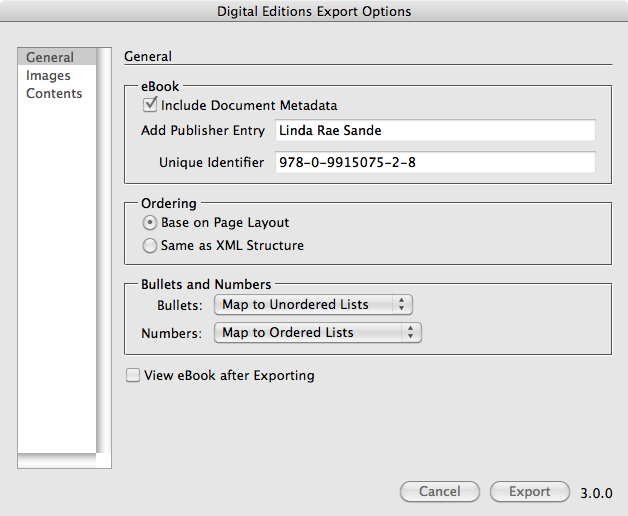
  1. In the General pane, enter the publisher information
  2. Enter the ISBN.

Note: ISBNs are required for iTunes, B&N and Kobo as well as other retailers. They can be purchased from Bowker at http://www.myidentifiers.com.

epub_export_general

In the Images pane, complete the information as shown below if your book includes images other than the cover.

epub_export_images

  1. In the Contents pane, select the options as shown below
  2. Note the Table of Contents information
  3. Click Export.

epub_export_contents

Next, you’ll need to test your ePub file.

  1. Download Adobe Digital Editions from http://www.adobe.com/solutions/ebook/digital-editions/download.html. This free application will allow you to check your file for proper formatting and navigation.
  2. If you find a problem with formatting, usually due to incorrect paragraph or character style tags, go back to the InDesign source files and make the corrections.
  3. Regenerate the ePub file.

Your ePub file can be used without further manipulation on sites such as Nook Press and ARe. You will need to download and use Calibre, a free application, to manipulate your ePub to work on iTunes and Smashwords.

  1. In Calibre, run the Startup Wizard.
  2. For iTunes, select Apple and iPod/iPhone/iPad
  3. Add your ePub file and complete the metadata information for your book
  4. In the ePub Output screen, be sure to change the following:
    In Structure Detection, select Remove first image
    In EPUB Output, select Preserve cover aspect ratio
  5. Convert your ePub file
  6. Test the output on an iPad and take screenshots that can be used when you upload your book using iTunes Producer
  7. Rerun the Startup Wizard in Calibre for Kobo and repeat the steps to create a Kobo-specific ePub file.

That’s it! Once you have your ePubs uploaded to the various online retailers, it’s time to start writing another book. Good luck!

Formatting Your Book Using InDesign, Part 5

Now that you have your book formatted for paperback printing, it’s time to set up the table of contents necessary to produce the ebook versions of your book as well as generate the .mobi file for Kindle.

Setting Up a Table of Contents

To set up your book’s table of contents page, perform the following steps (note: this page will not appear in the ePub or .mobi file but is necessary for navigation on e-readers):

  1. Choose File > New > Document
  2. Select the preset template you set up earlier
  3. Choose Layout > Table of Contents
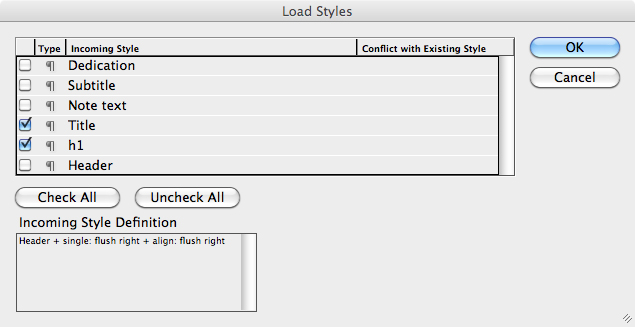
  4. From the Paragraph Styles palette, choose Load Paragraph Styles
  5. Select any chapter file
  6. Click Open
  7. Deselect all but the Title and h1 styles
  8. Click OK and save the file as TOC.indd.

load_styles

  1. Add TOC.indd to the very end of the bookfile and save the bookfile
  2. Choose Layout > Table of Contents
  3. Set the Style: to Title
  4. In Other Styles, click h1 and <<Title and <<Add
  5. Set Entry Style to TOC Body Text
  6. Click Include Book Documents
  7. Click OK.

toc_setup

  1. Click the cursor in the upper left of your TOC text frame. The word Contents and all your chapters should appear
  2. Save TOC.indd
  3. Save the bookfile.

TOC

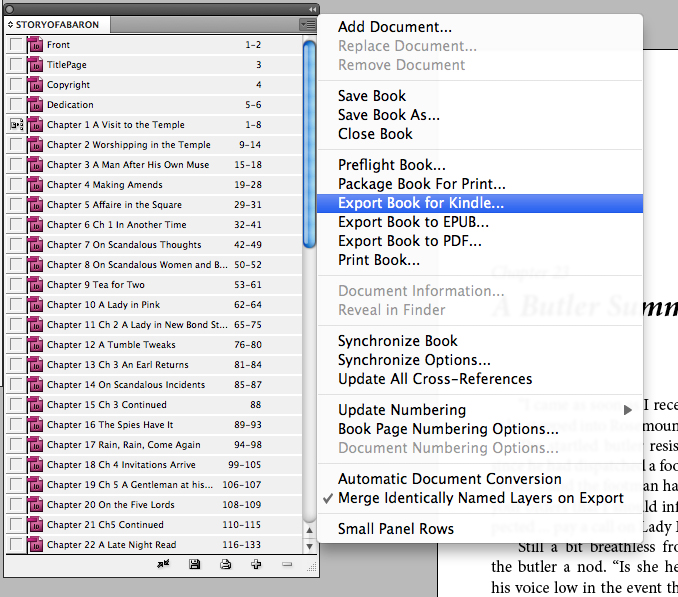
To create the .mobi file for Kindle, perform the following steps:

  1. Install the free Kindle plug-in available from Amazon
  2. From the bookfile palette menu, choose Export Book for Kindle
  3. Choose where you want your output file to be saved
  4. Name the file bookname.mobi.

Export_Book_for_Kindle

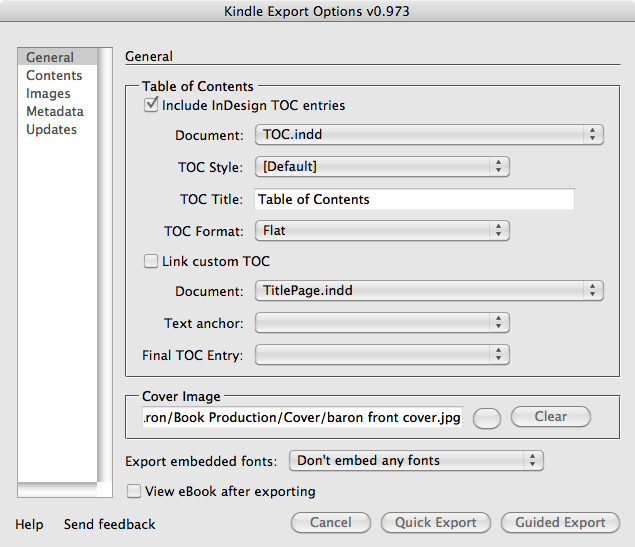
In the Kindle Export Options dialog, complete the following:

  1. In the General pane, click Include InDesign TOC entries
  2. Select TOC.indd in the Document: popdown menu
  3. In the Cover Image field, click the blank button to the right of the empty field to browse and locate the JPG file of your book’s front cover
  4. In the Export embedded fonts topdown menu, select Don’t embed any fonts.

Mobi_screen

  1. In the Content pane, select the document’s Start Reading Location (usually the Titlepage.indd file)
  2. Select Preserve white spaces and new lines
  3. Select Preserve forced line breaks.

kindle_export_contents

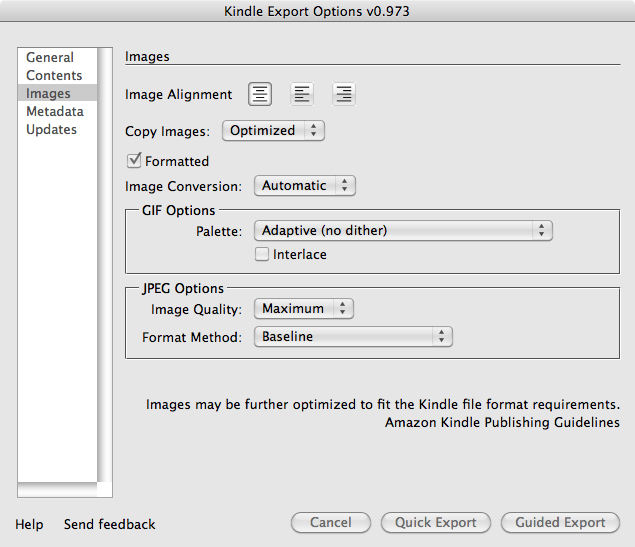
If your book includes images other than the cover file, set up the images as shown in the dialog box here.

kindle_export_images

  1. In the Metadata pane, complete all the fields with your book’s information
  2. Click Guided Export.
  3. Note: You may see an error warning the first time you attempt to generate a .mobi file. Simply select Export Book for Kindle from the bookfile again. All the information you entered in the Kindle Export Options pane will still be there. Click Guided Export and the conversion should begin.

kindle_export_metadata

Now it’s time to test your .mobi file to be sure everything has converted correctly.

  1. Open the .mobi file in Kindle Previewer (a free app from Amazon)
  2. Review the file to ensure proper translation
  3. Fix any issues in the InDesign source files (these would include any incorrect paragraph or character tagging)
  4. Regenerate the .mobi file
  5. Review the file in Kindle Previewer
  6. When you are satisfied with your .mobi book, upload it to Amazon in your KDP dashboard.

Next time, we’ll cover how to create an ePub file for other ebook retailers.

Formatting Your Book Files Using InDesign – Part 3

Now that you have your front matter and chapter files complete, it’s time to do the backmatter files. The back of your book should include a teaser, or excerpt, for your next book as well as an author biography and links to your other books.

Setting Up an Introduction to an Excerpt and Excerpt

excerpt_intro-1

To set up your book’s Introduction to Excerpt page, perform the following steps:

  1. Choose File > New > Document
  2. Select the preset template you set up earlier
  3. Choose File > Save As and give it a logical filename without spaces (such as introexcerpt.indd)
  4. Apply master page C
  5. Adjust the text block to start 2 inches from the top margin
  6. Choose Window > Paragraph Styles
  7. Type your introduction, click Return and type the title of the next book
  8. From the Paragraph Style palette, apply the Dedication paragraph style to the first line and the Title paragraph style to the title of your next book
  9. Choose Page > Insert Page to add a second page
  10. Type or copy and paste your excerpt text
  11. Apply the Body paragraph style to your excerpt text
  12. Ensure your file ends on an even page (add a blank back page, if necessary)
  13. Choose File > Save.

Setting Up an Author Biography Page

To set up your author biography page, perform the following steps:

about_author-1

  1. Choose File > New > Document
  2. Select the preset template you set up earlier
  3. Choose File > Save As and give it a logical filename without spaces (such as bio.indd)
  4. Apply master page C
  5. Adjust the text block to start 2 inches from the top margin
  6. Choose Window > Paragraph Styles
  7. Type “About the Author”, click Return and type your biography
  8. From the Paragraph Style palette, apply the Title paragraph style to the first line and apply the Body paragraph style to the biography text
  9. Choose Page > Insert Page to add a second page, which you’ll leave blank if you have no additional books to list
  10. Choose File > Save.

Setting Up a Links Page

When readers finish a book, it’s a good idea to give them an easy way to find and download the next book or discover other books they may not have read. InDesign makes it easy to encode the links to your other books. If you include this Links file in your paperback book, your links will appear as URLs. For the ebook, the links will appear as live, clickable links. To create a links page, perform the following steps:

  1. On the page following your author biography, type a heading like “Other Books by Jane Doe”.
  2. From the paragraph Style palette, apply the Title paragraph style
  3. Type the entire URL of your other books separated by line breaks (each line must begin with http://)
  4. Click and drag to highlight the first URL
  5. Choose Type > Hyperlinks & Cross-References > New Hyperlink from URL
  6. Repeat steps 4 and 5 for the rest of your URL
  7. Choose File > Save.

Adding Your New Files to Your Bookfile

Now you just need to add your new files to your bookfile.

With your InDesign book file active:

  1. Click the + at the bottom to add a file. Start with the file introexcerpt.indd (or whatever files you have created since last populating your book file).
  2. Continue to add files until all are included.
  3. Click and drag the files up or down to rearrange them within the bookfile.
  4. From the bookfile palette menu (upper right corner), choose Save Book.

bookfile

Checking Your Files

Before converting your book for various formats,

  1. Ensure your chapters’ first pages have appropriate master pages applied
  2. Ensure all other pages have appropriate master pages applied
  3. Apply any paragraph or character styles you may have missed
  4. Choose File > Save for all your changed/updated files.

Setting Up Numbering

Although page numbering isn’t necessary for ebooks, it helps you navigate your book and is necessary for the print version. To set up numbering, perform the following steps:

  1. in your bookfile, click once to highlight your first chapter
  2. From the bookfile pallet menu, choose Document > Numbering Options

numbering_options

  1. Click Start Page Numbering at: and insert 1 in the field
  2. Click OK

doc_continuing_number

  1. In the bookfile, click once to highlight Chapter2
  2. From the bookfile palette menu, choose Document Numbering Options
  3. Click Automatic Page Numbering
  4. Click OK
  5. With no files selected, from bookfile palette menu, choose Update Numbering > Update All Numbers
  6. From bookfile palette menu, choose Save Book.

bookfile_update_numbering

Double-check your page numbering by opening a few files. Make any corrections where necessary and repeat the steps above to update the numbering. Be sure to save your bookfile.

Now you’re ready to output a PDF for a printed book.

Creating a PDF for Your Printed Book

If you’ll be making your book available in paperback, you’ll need a print-ready PDF file. Perform the following steps:

Export_Book_for_PDF

  1. From the bookfile palette menu, choose Export Book to PDF
  2. Do not allow blank pages to be discarded
  3. View the PDF in Acrobat
  4. Fix any errors in the source file(s)
  5. Create (hopefully) the final PDF
  6. Make final PDF read-only or apply security

In the next post, you’ll create and add a table of contents file and output the epub and Mobi files for the ebook versions of your book.


Formatting Your Book Files Using InDesign – Part 2

Now that you have your front matter files done, it’s time to work on your chapter files. You’ll need a separate InDesign file for each chapter and, if applicable, a prelude and epilogue. These will use the book template you set up earlier, which includes the master pages appropriate for chapter files.

Setting Up and Formatting Chapter Files

chapter_start

To set up a chapter file in InDesign, perform the following steps:

  1. Choose File > New > Document.
  2. Select the preset template you set up earlier.
  3. Choose File > Save As and give it a logical filename without spaces (such as Chapter1.indd).
  4. Apply master page B. Additional pages will have the master page A automagically applied as content is added.
  5. Adjust the text block to start ~ 2 inches from the top margin.
  6. Choose Window > Paragraph Styles.
  7. From the Paragraph Styles palette (click the upper right corner), select New Paragraph Style. The first style will be the one applied to your chapter headings, such as “Chapter 1”. When converting the book for Kindle and ePub files, this style will break up the. xml into separate files and create the entries in the online table of contents.
  8. Assign “Style Name” to be h1 and the “Next Style” to be “Title”.
  9. Select “Basic Character Formats” and choose your Font Family and Size and Leading.
    Typically, these appear bold or italic or both and are sized differently from the text in a book.
  10. Select “Indents and Spacing” and set the Alignment to Left Justify. Include an extra line space below the h1.
  11. Click OK.
  12. Repeat steps 5 through 11 to create a chapter Title style (if applicable – you may not use titles for your chapters). Set the “Next Style” to be Note Text.
  13. Repeat steps 5 through 11 to create a Note Text style, the subtitle line where you might indicate the date or location where the chapter takes place. This is usually shown in italics, so be sure to set your “Basic Character Formats” to your Font Family and choose the italic version of the font. Set the “Next Style” to be Body.
  14. Repeat steps 5 through 11 to create a Body style with the “Next Style” to be Body. The majority of your manuscript will use this style, so be sure to set your “Basic Character Formats” appropriately and give your line spacing some “air”.paragraph_style_body
  15. Choose Window > Character Styles.  character_styles_palette
  16. From the Character Styles palette (click the upper right corner), select New Character Style. The only character style you should need in a novel is one that indicates emphasis, a character’s thoughts, or foreign language words and phrases. This is typically the italicized version of your main “Font Family”.character_styles_italic
  17. Assign “Style Name” to be Italic.
  18. Select “Basic Character Formats” and choose your Font Family (be sure to select the italicized version of the font) and Size and Leading.
  19. Click OK.
  20. Choose File > Save.
  21. Choose File > Save As and give it the filename Chapter2.indd.
  22. Repeat step 21 for as many chapters as there are in your book.

Populating Your Chapter Files

To populate your chapters files with your manuscript, perform the following steps:

  1. Enter your h1 (Chapter 1, for example) and hit Return.
  2. With your cursor at the end of the line, apply the h1 paragraph style by clicking on it in the Paragraph Styles palette.
  3. In the next line, enter your chapter title (if applicable) and hit Return. The paragraph style Title should already be applied to the line. If not (because you may not have filled out the “Next Style” in the h1 definition), apply the Title paragraph style.
  4. if you wrote your manuscript in Word or Mellel, output the chapters to RTF and perform the following steps:
    1. Choose File > Place and select the corresponding RTF file for the chapter.
    2. Click your loaded cursor in the Body line space and your text will autoflow into the file. Extra pages will automagically be created as the text populates the file, although occasionally you may have to choose Layout > Page > Add Page to get the process started.
    3. Click the red + at the bottom right corner of the text box to load the cursor and then click in the upper left corner of the next page’s margin to “place” the text and continue the flow.
  5. OR, just copy and paste your text into the chapter files.c Return and apply the Body paragraph style.
  6. Apply paragraph tags and character tags as appropriate.

Setting Up and Populating a Bookfile

One of InDesign’s features is a bookfile, a “Grand Central Station” for all the files that make up your book. To make it easier to access your files and keep them in the order they appear in your book, perform the following steps:

  1. Choose File > New > Book …   bookfile
  2. Name the bookfile using the title of your book and save it in the same folder as your chapter files.
  3. Click the + at the bottom to add a file. Start with the file TitlePage.indd.
  4. Continue to add files until all are included.
  5. Click and drag the files up or down to rearrange them within the bookfile.
  6. From the bookfile palette menu (upper right corner), choose Save Book.

In the next post, we’ll cover how to create and add your back matter to your book, including the introduction to an excerpt from your next book, the excerpt, links to your other books and an “about the author” section.